Browser extension · Web clipper

Found a ref you like?
Right-click. It’s on your board.

The Cobalt web clipper saves any image, link or text selection straight to a moodboard while you browse — Pinterest, Instagram, artist portfolios, shops. Every clip keeps its source link, so credit is never lost.

Free on every plan  ·  Chrome, Edge, Brave, Arc  ·  Firefox

pinterest.com/search/pins/?q=neon+portrait+lighting
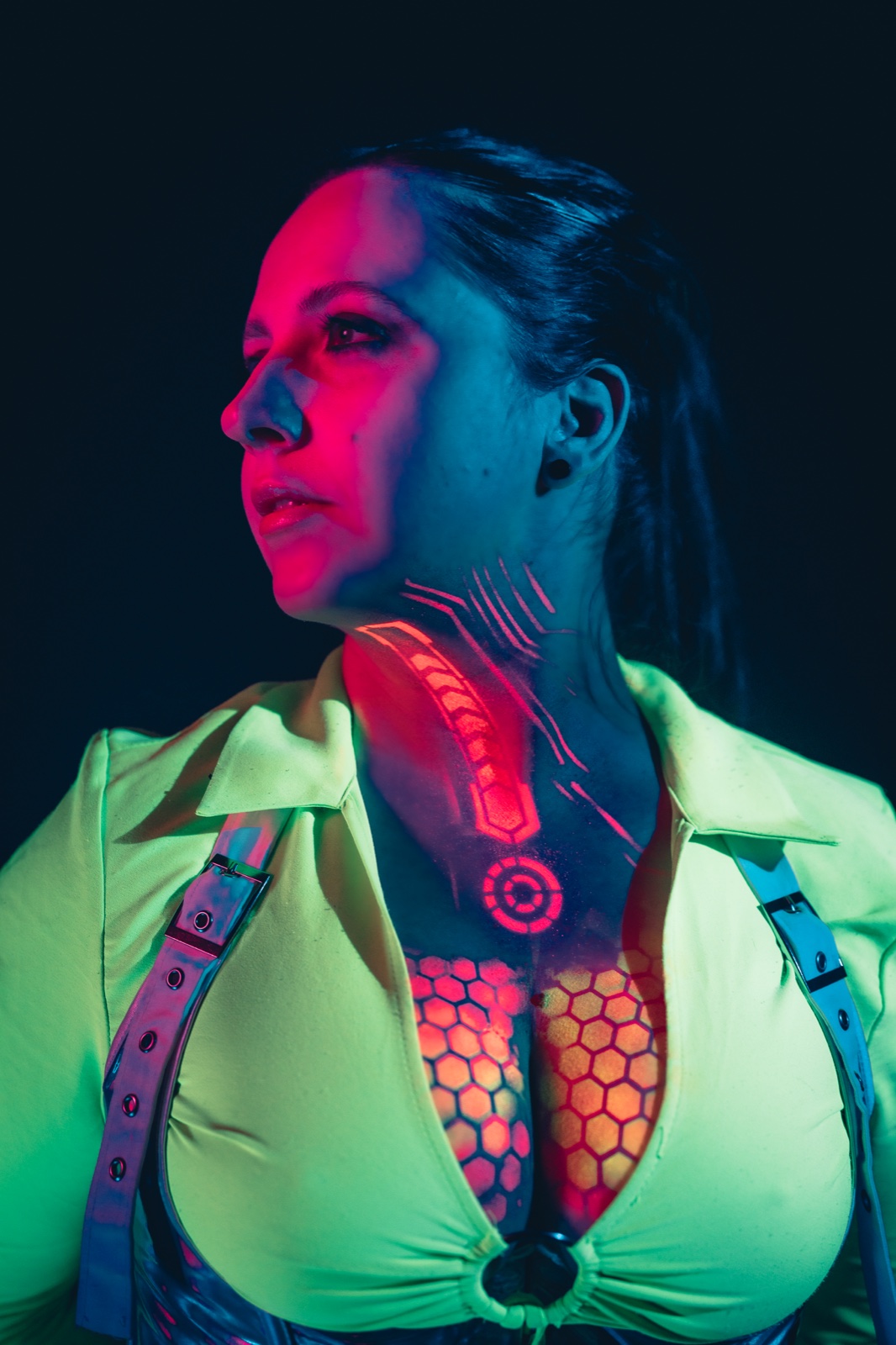
Neon portrait reference found while browsing
Studio lighting reference found while browsing
Cyberpunk styling reference found while browsing
Film-noir lighting reference found while browsing
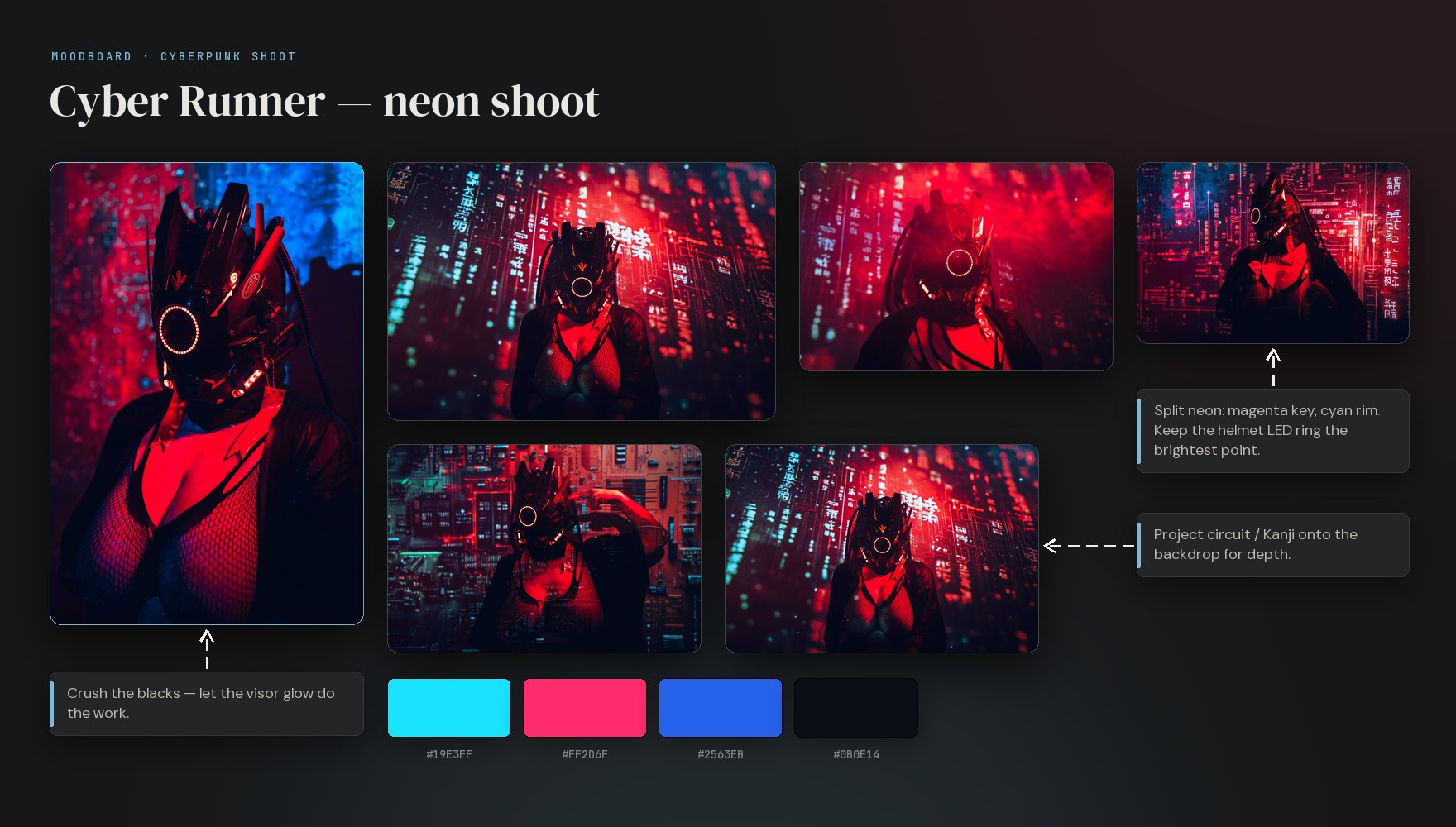
✓  Saved to “Neon shoot” · source kept
What it does

Your moodboard fills up
as fast as you find things.

Browse the way you already do. The clipper sits in your right-click menu and sends anything you find to the exact board it belongs on — no tab-switching, no downloading and re-uploading, no lost sources.

One right-click

Image, link, or selected text — right-click, “Save to Cobalt”, done. Pick a destination board, or drop it into your Unsorted inbox to sort later.

Sources kept automatically

Every clip remembers where it came from. Credit a photographer, find the original listing, or trace a costume reference back to its post — months later.

Works on every site

Pinterest, Instagram, Reddit, shops, artist portfolios — if it’s in your browser, you can clip it. Ships for Chrome and Firefox (and Chromium browsers like Edge, Brave, Arc).


Two minutes, once

Install it, pair it,
forget it’s there.

The clipper is live on the Chrome Web Store — one click installs it for Chrome, Edge, Brave, Opera and Arc, with automatic updates. Firefox Add-ons is still on the way; until it lands, the setup guide walks you through loading the Firefox build click by click.

1

Install it in your browser

Add it from the Chrome Web Store with one click (covers Edge, Brave, Opera and Arc too), or load the Firefox build by hand — about a minute, no developer skills needed.

2

Pair it with your account

Generate a personal token in Cobalt Settings and paste it into the extension once. It’s stored only in your browser and can be revoked any time.

3

Right-click anything

From now on every image, link and text selection has a “Save to Cobalt” entry. Pick a board — or let it land in your Unsorted inbox.


Why sources matter

Every clip keeps
its receipt.

A moodboard full of mystery JPEGs is a problem waiting for the day you need to credit the photographer, buy the prop, or check whether you can publish the board. The clipper stores the source page with every clip automatically — so your references stay traceable, your credits stay honest, and a board you share with a client or post publicly holds up.


Questions

Clipper FAQ.

Chrome and every Chromium-based browser — Edge, Brave, Opera, Arc — from a single build, plus a dedicated build for Firefox.
The Chrome Web Store listing is live — install it with one click and it updates automatically. The same listing covers Edge, Brave, Opera and Arc. The Firefox Add-ons listing is still on the way; today you load the Firefox build directly from your Cobalt account in about a minute, and the setup guide walks you through it step by step.
Any image, any link, and any text selection. Right-click it, choose “Save to Cobalt”, and pick a destination board — or send it to your Unsorted inbox and organize later.
Yes. Every clip stores the page it came from automatically, so you can credit a photographer or artist, find the original listing, or trace a costume reference back to its post — even months later.
Yes — the clipper saves to your own boards, so it pairs with your Cobalt account using a personal token you generate once in Settings. Cobalt is invite-only right now; you can request access. People you share boards with still need no account.
Yes. The clipper is included on every Cobalt plan, including the Free plan.

Free on every plan · cobalt.photos

Stop downloading.
Start clipping.

Install the clipper, browse like you always do, and watch the moodboard build itself. Cobalt is invite-only today — request access to get started.